Surveys
Last updated: September 25, 2026
This guide will cover everything you need to know about sending surveys through Yourco, from creating survey templates to downloading survey CSV results.
Survey Template Creation
What is a Survey Template?
Survey Templates are forms that can be created, customized, and re-used for Yourco surveys. They feature a range of different question types, have preview capabilities, and can be shared with different Admins and Managers in your Yourco system.
How do I create a Survey Template?
Go to Surveys.
Select "Templates" at the top of the page.
Select the "+ Survey Template" button in the upper right.
Enter the name of your survey in the "Survey title" section.
Add a description to your survey (optional).
Add as many questions as you'd like to the survey.
Select "Save template" in the upper right corner to save your changes.
Select "Preview" at the top of the page to view a preview of what the survey will look like to your Employees.
What types of questions can I add to my Survey Template?
Question types are central to how you would like to format your survey. Below is a breakdown on each question type offered by Yourco surveys.
Free Response - Free Response questions allow you to ask open-ended questions to your employees, enabling more nuanced answers to questions.
Single Selection - Single Selection questions enforce the choice of one option among many when a single, defined answer to a question is required.
Multiple Selection - Multiple Selection questions allow Employees to choose multiple options when multiple answers to a question are allowed or required.
Number - Number questions are for specific scenarios where the only correct answer to a question would be in a numeric format.
How do I re-order questions?
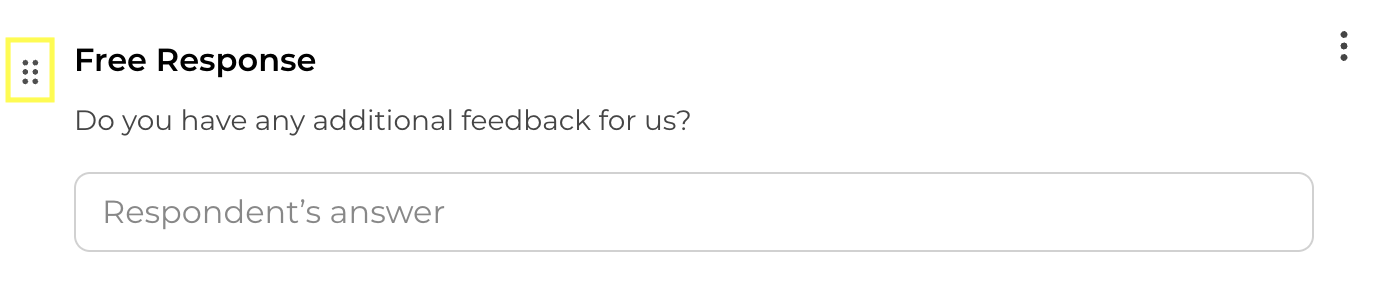
Questions can be re-ordered in the survey by hovering over the question and dragging the drag handle (highlighted in yellow):
Accessing question options
Question options can be accessed by hovering over the question and clicking the triple dot icon located in the upper right hand corner of the question box.

Requiring a Question - Questions can be made mandatory by selecting the "Required" toggle under Question options.
Duplicating a Question - You can duplicate a question by selecting the "Duplicate" option under Question options.
Deleting a Question - Questions can be deleted by selecting the "Delete" option under Question options.
How can I add links in my Survey?
Highlighting any text in survey/question names or descriptions will trigger a floating menu that contains the following icons:
A bolded B
An Italicized I
A Link Icon for Hyperlinks
Select any of the icons to apply the corresponding text formatting or link you would like to include in the survey text.
How can I share a survey template?
Sharing allows other Admins and Managers to reuse your survey template.
To share a survey template:
Navigate to Surveys.
Select the "Templates" tab in the upper left.
Find the survey template you would like to share, and click the triple dot icon located on the right side of the survey template's row:

Select the "Share" toggle that appears and the template will be shared across all Admins and Managers within your Yourco organization.
How to Send a Survey
Navigate to Messages.
Compose a message as you normally would.
Select "Attach" underneath the message input field.
Select "Survey" from the pop-out menu.
Enter a name for your survey.
Select the Survey Template you would like to use.
Set a survey deadline.
Make your selections as to whether the survey should be anonymous, locked, or automatically translated.
Select "Attach".
Send the message as you normally would with the survey attached.
A locked survey will require Employees to enter a pin texted to their device in order for them to access the survey.
How to View Survey Results
Navigate to Surveys.
Find the survey you would like to review.
Select the three vertical dots on the right side of the survey row.
Select "Download CSV".
View the CSV file in your Downloads folder.
How to Remind Employees to Fill out the Survey
Navigate to Surveys.
Select the "Remind" button on your survey of choice.
Compose your reminder message.
Select the Send button in the bottom right of the modal.
The “Remind” button will no longer appear once all Employees have responded to the survey or the survey deadline has passed.
How to Delete a Survey
Navigate to Surveys.
Find the survey you would like to delete.
Select the three vertical dots on the right side of the survey row.
Select "Delete".
Select "Delete" on the modal to confirm deletion of the survey.
Permissions
Survey Templates
Admins and Managers can create survey templates.
Survey templates are private by default, meaning only the template creator can see and use them.
The template creator can choose to share a template with all Admins and Managers.
Once a template is shared:
All Admins and Managers can use the template when sending a survey.
The template creator and all Admins can edit, delete, or unshare the template.
Other Managers can use the template but cannot edit, delete, or unshare it.
Sent Surveys
Admins
Admins can manage all surveys sent by any Admin or Manager. This includes the ability to:
View the survey and its results
Download survey reports
Send reminders to employees who have not completed the survey
Delete the survey
Managers
Managers can manage only the surveys they have sent themselves. For those surveys, they can:
View the survey and its results
Download survey reports
Send reminders to employees who have not completed the survey
Delete the survey