Uploading Employees
Last updated: February 18, 2026
CSV formatting for bulk upload
Your CSV file should look like the following:
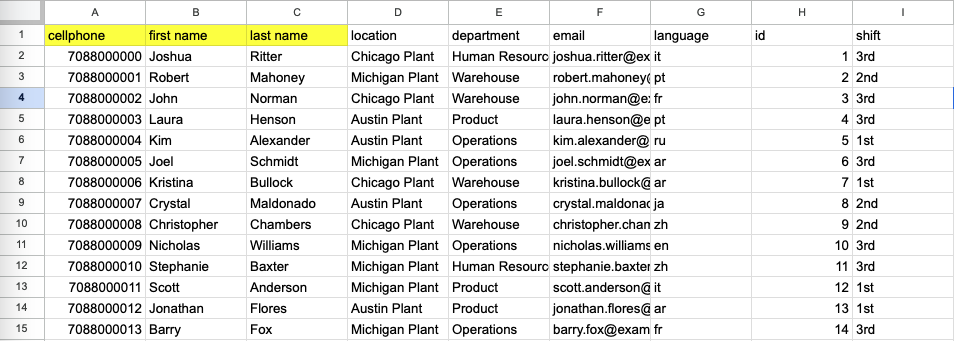
Note: The highlighted fields are required, all other fields are optional.
How can I upload employees?
Go to the employee directory.
Click into "Add Employees."
Select "Upload Many."
Click "Select CSV File."
Navigate to the CSV file you would like to use as your upload file.
Select the corresponding column names from your CSV to match with the fields Yourco requests.
Review the uploaded data.
Select "Submit" to confirm that the data is correct and complete the upload.
Note: The employee upload only adds new employees that do not currently exist in Yourco. It will not update or remove employees.
Who can upload employees?
Admin | Full access |
Manager | No access |
Employee | No access |
What is an employee upload file?
An employee upload file is a CSV file of employee information including at least the required fields cellphone, first name, and last name. It can also optionally include columns for language, email, location, department, id, and tags.
When would I want to upload employees?
You would like to save time over manually adding each individual Employee into the system.